
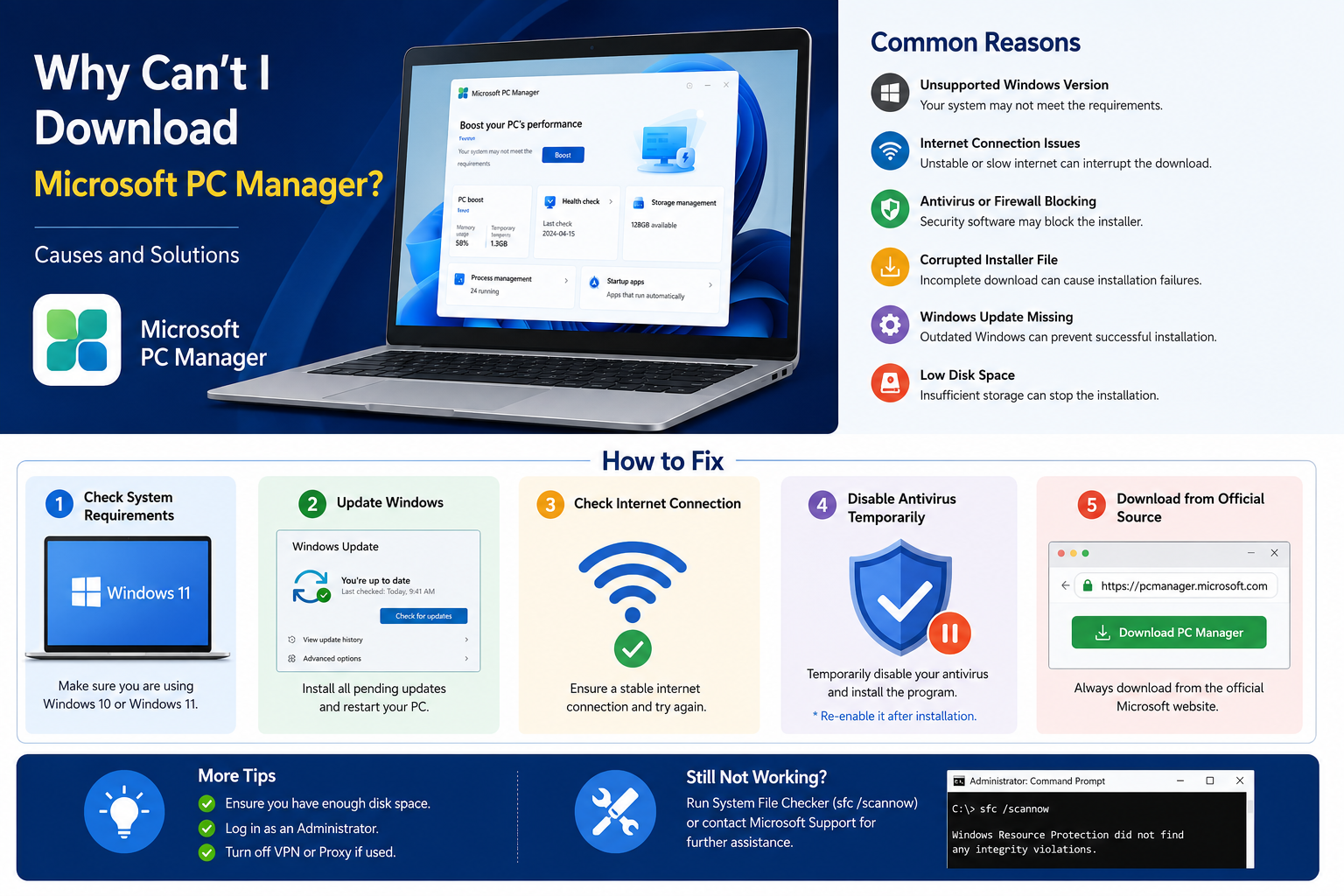
Why Can’t I Download Microsoft PC Manager?

Downloading Microsoft PC Manager should only take a few minutes. However, many Windows users encounter issues where the download won’t start, the installer fails, or the application refuses to install altogether.
If you’re wondering, “Why can’t I download Microsoft PC Manager?”, you’re not alone.
Several factors can prevent the download or installation, including Windows compatibility issues, network restrictions, outdated system files, antivirus software, or corrupted installation packages.
This comprehensive guide explains every possible reason, how to identify the exact cause, and the best solutions to get Microsoft PC Manager installed successfully on your Windows PC.
What Is Microsoft PC Manager?
Microsoft PC Manager is a free optimization tool developed by Microsoft to help Windows users improve system performance, manage storage, clean temporary files, optimize startup applications, and access Windows Security features from one convenient dashboard.
Unlike many third-party PC cleaning applications, Microsoft PC Manager uses built-in Windows maintenance tools without making risky registry changes.
Its main features include:
- PC Boost
- Storage Cleanup
- Health Check
- Startup App Management
- Process Manager
- Windows Update Integration
- Security Protection
- Browser Protection
Why Won’t Microsoft PC Manager Download?
Several issues may prevent Microsoft PC Manager from downloading or installing.
Below are the most common causes and their solutions.
| Problem | Difficulty | Solution |
|---|---|---|
| Unsupported Windows version | Easy | Update Windows |
| Internet connection issues | Easy | Check your network |
| Microsoft server outage | Easy | Try later |
| Corrupted installer | Easy | Download again |
| Antivirus blocking installation | Medium | Temporarily disable antivirus |
| Windows Update missing | Medium | Install pending updates |
| Low disk space | Easy | Free storage |
| Administrator restrictions | Medium | Use an administrator account |
Check Your Windows Version First
Microsoft PC Manager Supports Only Certain Versions
One of the biggest reasons users cannot install Microsoft PC Manager is using an unsupported Windows version.
Compatible Systems
- Windows 11
- Windows 10 (latest supported releases)
Older operating systems such as:
- Windows 8
- Windows 8.1
- Windows 7
are not officially supported.
How to Check Your Windows Version
- Press Windows + R.
- Type:
winver- Press Enter.
A window will display your Windows edition and build number.
If your version is outdated, update Windows before attempting the installation again.
Your Windows Is Missing Important Updates
Microsoft PC Manager relies on modern Windows components.
If Windows Update hasn’t been installed for months, required system files may be missing.
Fix
- Open Settings.
- Select Windows Update.
- Click Check for Updates.
- Install every available update.
- Restart your PC.
Many installation failures disappear after installing the latest cumulative update.
Your Internet Connection Is Unstable
Interrupted downloads often create incomplete installation files.
Symptoms include:
- Download stops halfway
- Installer won’t open
- Installation freezes
- “Download failed” message
Fix
Try:
- Restarting your router
- Switching to another Wi-Fi network
- Using Ethernet instead of Wi-Fi
- Turning off VPN temporarily
Microsoft’s Download Servers May Be Busy
Although uncommon, Microsoft servers occasionally experience temporary outages or high traffic.
If the download page won’t load or repeatedly fails, wait a few hours before trying again.
The Installer File Is Corrupted
An interrupted download often creates a damaged installation package.
Common signs include:
- Installer won’t launch
- “This app can’t run on your PC”
- Unexpected installation errors
Fix
Delete the installer completely.
Download a fresh copy from Microsoft’s official website.
Avoid downloading Microsoft PC Manager from unofficial websites, as these files may be outdated or modified.
Your Antivirus Is Blocking the Installation
Some antivirus programs mistakenly flag newly released applications.
Even trusted Microsoft software can occasionally be blocked until antivirus definitions are updated.
Fix
Temporarily disable third-party antivirus software.
Install Microsoft PC Manager.
Re-enable antivirus immediately after installation.
If Windows Security blocks the installer, review the protection history and allow the application if you trust the source.
Windows SmartScreen Is Preventing Installation
Windows SmartScreen helps protect your computer from unknown software.
Sometimes it blocks legitimate applications.
Fix
If you downloaded Microsoft PC Manager from Microsoft’s official website:
- Click More Info.
- Choose Run Anyway if you’re certain the installer is genuine.
Never bypass SmartScreen for software downloaded from unknown sources.
Your User Account Doesn’t Have Administrator Rights
Installing software requires administrative permission.
If you’re using a work computer, school PC, or shared account, installation may be blocked.
Fix
Use an administrator account or contact your organization’s IT administrator.
There Isn’t Enough Storage Space
Microsoft PC Manager is lightweight, but Windows still needs temporary space during installation.
Low storage can interrupt the setup process.
Check Available Storage
Go to:
Settings → System → Storage
Delete unnecessary files if your drive is nearly full.
Aim to keep at least 20 GB of free space for optimal Windows performance.
Another Installation Is Already Running
Windows Installer supports only one installation process at a time.
If another application is updating, Microsoft PC Manager may wait indefinitely.
Fix
Restart your computer.
Try installing Microsoft PC Manager before opening other applications.
Corrupted Windows System Files
Damaged Windows components frequently cause installation failures.
Fortunately, Windows includes built-in repair tools.
Run System File Checker
Open Command Prompt as Administrator.
Run:
sfc /scannowWait until the scan finishes.
Restart your PC.
If problems persist, run:
DISM /Online /Cleanup-Image /RestoreHealthThese tools repair missing or corrupted Windows files.
Proxy or VPN Settings Are Blocking the Download
Corporate VPNs, proxies, and restrictive firewalls can interfere with Microsoft downloads.
Fix
Temporarily disconnect:
- VPN software
- Proxy servers
- Network filtering applications
Then try downloading again.
Windows Security Policies Are Blocking Installation
Some organizations restrict software installation through Group Policy.
This usually affects:
- Company laptops
- School computers
- Managed devices
Only your IT administrator can remove these restrictions.
Browser Problems Prevent the Download
Occasionally, the browser itself causes download failures.
Possible reasons include:
- Corrupted cache
- Broken extensions
- Download manager conflicts
Fix
Try:
- Clearing browser cache
- Using another browser
- Disabling extensions
- Downloading in Incognito mode
Common Microsoft PC Manager Error Messages
“This App Can’t Run on Your PC”
Possible causes:
- Unsupported Windows version
- Corrupted installer
- Damaged download
Solution:
- Download a fresh installer.
- Update Windows.
- Verify system compatibility.
Installation Stuck at 0%
Possible causes:
- Windows Update running
- Antivirus scanning
- Background installer conflict
Restart your PC and try again.
Installer Closes Immediately
Possible causes:
- Corrupted installer
- Security software interference
- Missing Windows components
Run System File Checker and download the installer again.
Advanced Troubleshooting Tips
Restart Before Installing
A simple restart clears temporary installer conflicts and releases locked system files.
Disable Startup Applications
Too many background applications can interfere with software installation.
Open Task Manager → Startup Apps and temporarily disable unnecessary programs.
Check Disk Health
A failing SSD or hard drive can cause installation errors.
Run:
chkdsk /fRestart your PC if prompted.
Install All Optional Driver Updates
Outdated chipset and storage drivers occasionally affect software installation.
Open Windows Update → Advanced Options → Optional Updates and install recommended drivers.
How to Safely Download Microsoft PC Manager
Always download Microsoft PC Manager from Microsoft’s official website or trusted Microsoft distribution channels.
Avoid:
- Third-party software repositories
- Modified installers
- File-sharing websites
- Unverified download portals
Using unofficial installers increases the risk of malware, outdated versions, or installation problems.
Best Practices Before Installing Microsoft PC Manager
Follow these steps to improve the chances of a successful installation:
- Update Windows completely.
- Restart your computer.
- Ensure you have enough free disk space.
- Use a stable internet connection.
- Download the installer from Microsoft’s official website.
- Temporarily disable third-party antivirus software if necessary.
- Sign in with an administrator account.
- Close unnecessary background applications.
Frequently Asked Questions
Why does Microsoft PC Manager keep failing to download?
This is usually caused by an unstable internet connection, antivirus software, browser issues, or a corrupted installer. Downloading a fresh copy after updating Windows often resolves the problem.
Can I install Microsoft PC Manager on Windows 7?
No. Microsoft PC Manager is designed for supported versions of Windows 10 and Windows 11.
Does Microsoft PC Manager require Microsoft Defender?
No. However, it integrates with Windows Security and works best when Microsoft Defender is enabled.
Why does Windows say the app can’t run?
This message usually appears if your Windows version is unsupported, the installer is corrupted, or important system updates are missing.
Is Microsoft PC Manager free?
Yes. Microsoft PC Manager is completely free to download and use.
Should I disable my antivirus before installing?
Only if you suspect it is blocking the installer. Re-enable your antivirus immediately after installation, and only use installers from trusted Microsoft sources.
Can low disk space stop Microsoft PC Manager from installing?
Yes. Windows needs free storage to extract installation files and complete the setup. Keeping at least 20 GB of free space is recommended.
Conclusion
If you can’t download Microsoft PC Manager, the problem is usually easy to fix. In most cases, updating Windows, checking your internet connection, downloading a fresh installer, or freeing up storage resolves the issue quickly.
Before trying advanced troubleshooting, verify that your PC meets the system requirements and that you’re using the latest version of Windows 10 or Windows 11. Download the installer only from Microsoft’s official website, avoid third-party sources, and keep your system updated for the best experience.
By following the steps in this guide, you can identify the exact cause of the problem and install Microsoft PC Manager successfully, allowing you to optimize your PC’s performance, improve security, and keep Windows running smoothly.