
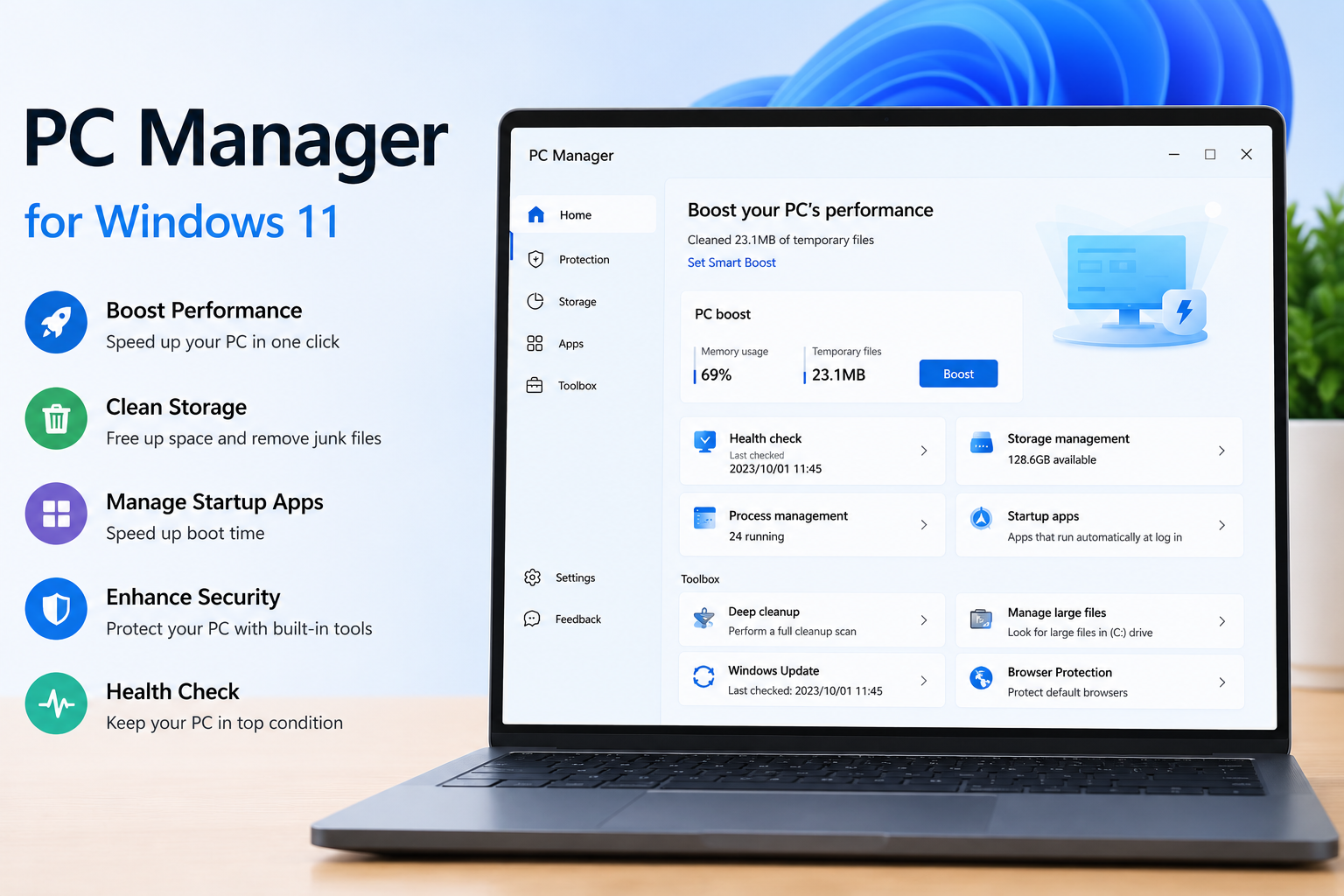
Microsoft PC Manager for Windows 11: Boost Performance

Microsoft PC Manager for Windows 11 offers a sleek interface, better multitasking, and powerful productivity features. However, even modern PCs can become slower over time due to temporary files, startup apps, storage clutter, and background processes.
That’s where Microsoft PC Manager comes in.
Developed by Microsoft, this free optimization tool helps Windows 11 users improve system performance without installing third-party cleaning software. Unlike many PC optimizer applications filled with ads or unnecessary features, Microsoft PC Manager integrates directly with Windows security and maintenance tools.
This comprehensive guide covers everything you need to know about Microsoft PC Manager, including its features, installation process, performance benefits, security capabilities, advantages and limitations, troubleshooting tips, and expert optimization strategies.
Top 3 Fastest Supercomputers in India 2026
What Is Microsoft PC Manager?
Microsoft PC Manager is an official Windows optimization utility created by Microsoft that helps users maintain their Windows 11 and Windows 10 computers.
Its primary purpose is to:
- Improve system performance
- Free up storage space
- Remove unnecessary files
- Manage startup applications
- Enhance Windows security
- Monitor computer health
- Optimize memory usage
Instead of replacing Windows Security or Disk Cleanup, Microsoft PC Manager combines several built-in Windows maintenance tools into one easy-to-use dashboard.
Why Microsoft Created PC Manager
Many Windows users install third-party utilities to clean junk files or speed up their computers.
Unfortunately, some of these programs:
- Display intrusive advertisements
- Install unnecessary software
- Make risky registry changes
- Consume system resources
- Offer little actual improvement
Microsoft PC Manager offers a safer alternative by using official Windows optimization methods rather than aggressive system modifications.
Key Features of Microsoft PC Manager
1. PC Boost
The PC Boost feature instantly frees memory and removes temporary files.
It helps:
- Reduce RAM usage
- Close unnecessary background processes
- Improve system responsiveness
- Speed up multitasking
This is especially useful when:
- Your PC feels sluggish
- Games stutter
- Applications respond slowly
- Multiple browser tabs consume memory
2. Deep Storage Cleanup
Storage cleanup scans your system for files that are safe to remove.
It can delete:
- Temporary files
- Windows cache
- Update cache
- Recycle Bin contents
- Log files
- Browser cache
- Delivery Optimization files
This helps recover several gigabytes of storage without affecting personal files.
3. Startup App Management
Too many startup applications slow Windows boot times.
PC Manager displays every program that launches during startup and allows you to disable unnecessary ones.
Examples include:
- Chat apps
- Game launchers
- Cloud sync software
- Auto-update services
Fewer startup apps mean:
- Faster boot times
- Lower memory usage
- Better battery life
4. Health Check
Health Check analyzes your computer for:
- Junk files
- Startup issues
- Browser settings
- Potential system optimizations
With one click, users can apply Microsoft’s recommended fixes.
5. Security Protection
Microsoft PC Manager integrates with Windows Security.
It provides quick access to:
- Virus protection
- Windows Update
- Smart App Control
- Microsoft Defender
- Security scans
This makes routine security maintenance much easier.
6. Process Management
Task Manager can overwhelm less experienced users.
PC Manager simplifies this process by showing:
- Running applications
- Resource usage
- High-memory programs
Users can close unnecessary processes with one click.
7. Storage Manager
Storage Manager provides detailed information about disk usage.
You can quickly identify:
- Large files
- Duplicate downloads
- Temporary data
- Installed applications
- Storage recommendations
8. Windows Update Management
Microsoft PC Manager checks whether your Windows installation is current.
Keeping Windows updated improves:
- Security
- Stability
- Performance
- Compatibility
Microsoft PC Manager Features at a Glance
| Feature | Benefit |
|---|---|
| PC Boost | Frees RAM instantly |
| Storage Cleanup | Removes junk files |
| Startup Apps | Faster boot time |
| Health Check | One-click optimization |
| Security | Easy access to Windows Defender |
| Process Manager | Close unnecessary apps |
| Storage Manager | Analyze disk usage |
| Windows Update | Keep Windows secure |
System Requirements
Microsoft PC Manager supports:
| Requirement | Details |
|---|---|
| Operating System | Windows 11 |
| Also Supported | Windows 10 |
| RAM | 4 GB minimum |
| Storage | Minimal installation space |
| Internet | Required for updates |
How to Download Microsoft PC Manager
Follow these steps:
- Visit the official Microsoft website.
- Download Microsoft PC Manager.
- Open the installer.
- Accept the license agreement.
- Complete installation.
- Launch the application.
The entire installation typically takes less than two minutes.
How to Use Microsoft PC Manager
Step 1: Launch PC Manager
Open the application from the Start menu.
Step 2: Click “Boost”
Press the Boost button.
Microsoft PC Manager immediately:
- Frees memory
- Removes temporary files
- Optimizes system resources
Step 3: Run Health Check
Click Health Check.
Review the recommendations before applying them.
Step 4: Clean Storage
Open Storage Manager.
Remove:
- Temporary files
- Cache
- Recycle Bin contents
Avoid deleting files you still need.
Step 5: Disable Startup Programs
Review startup applications.
Disable software you don’t use daily.
Benefits of Microsoft PC Manager
Using Microsoft PC Manager regularly can:
- Improve boot speed
- Increase available storage
- Reduce RAM consumption
- Improve application performance
- Remove unnecessary files
- Keep Windows updated
- Simplify PC maintenance
- Improve overall system responsiveness
Microsoft PC Manager vs Third-Party PC Cleaners
| Feature | Microsoft PC Manager | Third-Party Optimizers |
|---|---|---|
| Free | Yes | Usually limited |
| Official Microsoft Tool | Yes | No |
| Ads | No | Often |
| Registry Cleaning | No | Frequently |
| Safe Optimization | Yes | Varies |
| Windows Integration | Excellent | Limited |
Is Microsoft PC Manager Safe?
Yes.
Microsoft PC Manager is developed by Microsoft and uses Windows-supported optimization methods.
It does not:
- Modify the Windows Registry aggressively
- Install bundled software
- Display misleading performance warnings
- Require unnecessary subscriptions
Downloading it from Microsoft’s official website helps ensure you’re using a genuine version.
Common Problems and Solutions
PC Manager Won’t Install
Possible causes:
- Unsupported Windows version
- Pending Windows updates
- Antivirus interference
Solution:
- Update Windows.
- Restart your PC.
- Download a fresh installer.
PC Boost Doesn’t Improve Performance
Possible reasons:
- Insufficient RAM
- Failing SSD or HDD
- Heavy startup applications
- Malware
Run a Windows Security scan and review startup programs.
Storage Cleanup Finds Very Little
This usually means your computer is already well-maintained.
Large files, videos, and games consume far more storage than temporary files.
Advanced Tips to Get the Best Results
Restart Your Computer Weekly
Regular restarts clear memory and complete Windows updates.
Keep at Least 20% Free Disk Space
Windows performs better with sufficient free storage.
Use an SSD
Switching from an HDD to an SSD delivers one of the biggest performance improvements.
Update Device Drivers
Current drivers improve:
- Graphics performance
- Stability
- Hardware compatibility
Remove Unused Software
Uninstall applications you no longer use.
This reduces background services and frees storage.
Scan for Malware Regularly
Use Microsoft Defender to perform routine scans.
Malware can significantly impact system performance.
Microsoft PC Manager Pros and Cons
Pros
- Completely free
- Official Microsoft software
- Easy to use
- Excellent Windows integration
- Safe optimization methods
- Lightweight
- No advertisements
- Beginner-friendly interface
Cons
- Fewer advanced tools than some commercial utilities
- No registry cleaner (by design)
- Limited customization options
- Available only for Windows
Frequently Asked Questions
Is Microsoft PC Manager free?
Yes. Microsoft PC Manager is completely free to download and use.
Does Microsoft PC Manager work on Windows 10?
Yes. It supports both Windows 10 and Windows 11.
Can Microsoft PC Manager speed up my PC?
It can improve responsiveness by removing temporary files, freeing memory, and reducing unnecessary startup applications. However, it cannot overcome hardware limitations such as low RAM or an aging hard drive.
Is Microsoft PC Manager better than CCleaner?
For most users, Microsoft PC Manager is a safer choice because it comes directly from Microsoft, integrates with Windows, and avoids aggressive registry cleaning or bundled software.
Does PC Manager remove viruses?
No. PC Manager itself is not an antivirus. Instead, it works alongside Microsoft Defender and provides quick access to Windows Security features.
Should I use Microsoft PC Manager every day?
For most users, running a quick Boost or Storage Cleanup once or twice a week is sufficient. Daily use is generally unnecessary unless your system frequently accumulates temporary files.
Does Microsoft PC Manager delete personal files?
No. It targets temporary files, caches, and other system-generated data. Always review cleanup options before confirming deletion.
Best Practices for Maintaining Windows 11 Performance
To keep your PC running smoothly over the long term:
- Install Windows updates promptly.
- Run Storage Cleanup weekly.
- Review startup applications monthly.
- Keep Microsoft Defender enabled.
- Maintain at least 20% free disk space.
- Uninstall software you no longer need.
- Restart your PC regularly instead of relying solely on sleep mode.
- Back up important files before making significant system changes.
- Use an SSD for faster performance whenever possible.
- Avoid installing unnecessary optimization utilities that promise unrealistic speed gains.
Final Thoughts
Microsoft PC Manager is one of the most practical tools available for maintaining a healthy Windows 11 PC. By combining trusted Windows maintenance features into a single, easy-to-use interface, it helps users improve performance, reclaim storage space, manage startup applications, and stay on top of security updates without relying on third-party software.
While it won’t transform older hardware into a high-performance machine, it provides meaningful improvements through safe, Microsoft-approved optimization methods. Combined with regular Windows updates, sensible startup management, sufficient free storage, and good security practices, Microsoft PC Manager can help keep your computer running smoothly for years.
If you’re looking for a free, reliable, and beginner-friendly way to optimize Windows 11, Microsoft PC Manager is one of the best choices available in 2026.


