
Brother Printer WiFi Not Working? 12 Ways to Fix It (2026)

Is your Brother printer WiFi not working even though your laptop and phone connect to the internet without any problem?
This can happen in several ways. Your printer may suddenly disappear from Windows, refuse your WiFi password, stay stuck on Connecting WLAN, or work from one device but not another.
Before resetting the printer or reinstalling everything, there is one important question to answer:
Is the Brother printer actually connected to your WiFi network?
If the printer cannot connect to the router, focus on the wireless setup. If the printer is already connected but Windows or your phone cannot find it, the problem may be with device discovery, printer settings, or software instead.
Here are the troubleshooting steps worth trying.
1. Restart the Brother Printer and Router
Start with the easiest fix.
Turn off your Brother printer. Restart your wireless router and wait until the WiFi network is fully available again.
Once your phone or computer can connect normally, turn the printer back on and give it a few minutes to reconnect.
This is especially worth trying if the printer was working normally before a router restart, power outage, or temporary network problem.
If it reconnects, you may not need to change anything else.
2. Make Sure You’re Using the Correct WiFi Network
If restarting doesn’t help, check which network the printer is trying to use.
Homes and offices often have more than one wireless network, such as:
- Main WiFi
- Guest WiFi
- WiFi extender
- Mesh network
- Separate wireless bands
Make sure the printer is connecting to the network you actually intend to use.
Wireless capabilities also vary by Brother printer model. Some models support different WiFi bands and security standards than others.
Instead of assuming that every Brother printer has the same wireless capabilities, check the specifications for your exact model.
3. Brother Printer Not Accepting WiFi Password
If your Brother printer is not accepting the WiFi password, check the basics before resetting anything.
First, confirm that the password works on another device.
Then enter it again carefully. WiFi passwords are case-sensitive, so uppercase and lowercase letters matter.
Also check that:
- You selected the correct WiFi network.
- You’re entering the WiFi password rather than the router administrator password.
- The WiFi password hasn’t recently changed.
- No extra spaces were entered.
- You’re using the current password rather than an old saved password.
If you recently replaced your router or changed the network name or password, the printer may still contain settings for the old network.
In that case, configuring the printer’s wireless connection again may solve the problem.
4. Brother Printer Stuck on Connecting WLAN
A Brother printer stuck on Connecting WLAN is usually failing to complete its wireless connection.
Don’t keep entering the same password repeatedly without checking the rest of the network.
Try this:
- Restart the printer.
- Restart the router.
- Move the printer temporarily closer to the router.
- Verify the correct wireless network.
- Re-enter the WiFi password carefully.
- Run the printer’s wireless setup again.
Brother printers with a control panel commonly provide wireless configuration through the Network/WLAN settings, although the exact menu names vary by model.
If the printer was previously configured for another network, a network reset may be necessary before setting up the new wireless connection.
Only reset the network settings after confirming the procedure for your exact printer model.
5. Check the WiFi Signal
A printer that works sometimes and disappears at other times may simply have an unreliable wireless connection.
Move the printer closer to the main router as a test.
If it suddenly starts connecting reliably, signal strength or network coverage may be contributing to the problem.
Walls, floors, distance, large metal objects, and the placement of the router can all affect wireless performance.
You don’t necessarily need to permanently move the printer. This test simply helps determine whether distance is part of the problem.
6. How to Connect Brother Printer to WiFi Without Cable
If you’re wondering how to connect a Brother printer to WiFi without cable, many wireless Brother models can be configured directly from the printer.
On models with an appropriate control panel, the menu may look similar to:
Settings/Menu → Network → WLAN → Setup Wizard
The printer will search for available wireless networks.
Select your network name, enter the network key or WiFi password, and confirm the settings.
Wait for the printer to complete the connection before trying to print.
The exact menu varies between models, so don’t worry if your printer doesn’t show the same wording.
For printers without a display, check the wireless setup instructions for your specific model because the setup process can be different.
7. Brother Printer Not Connecting to Phone
If your Brother printer is not connecting to your phone, first check whether the printer itself is connected to WiFi.
Then look at the phone.
Your phone should be connected to a network that can communicate with the printer.
Problems can occur when the phone is:
- Using mobile data instead of WiFi
- Connected to guest WiFi
- Connected to a different network
- On a network that prevents devices from communicating with each other
Try connecting your phone to the same normal WiFi network used by the printer.
Then restart the phone and printer and try again.
8. How to Connect Brother Printer to WiFi With Phone
If you want to know how to connect a Brother printer to WiFi with a phone, Brother Mobile Connect is available for supported Brother models.
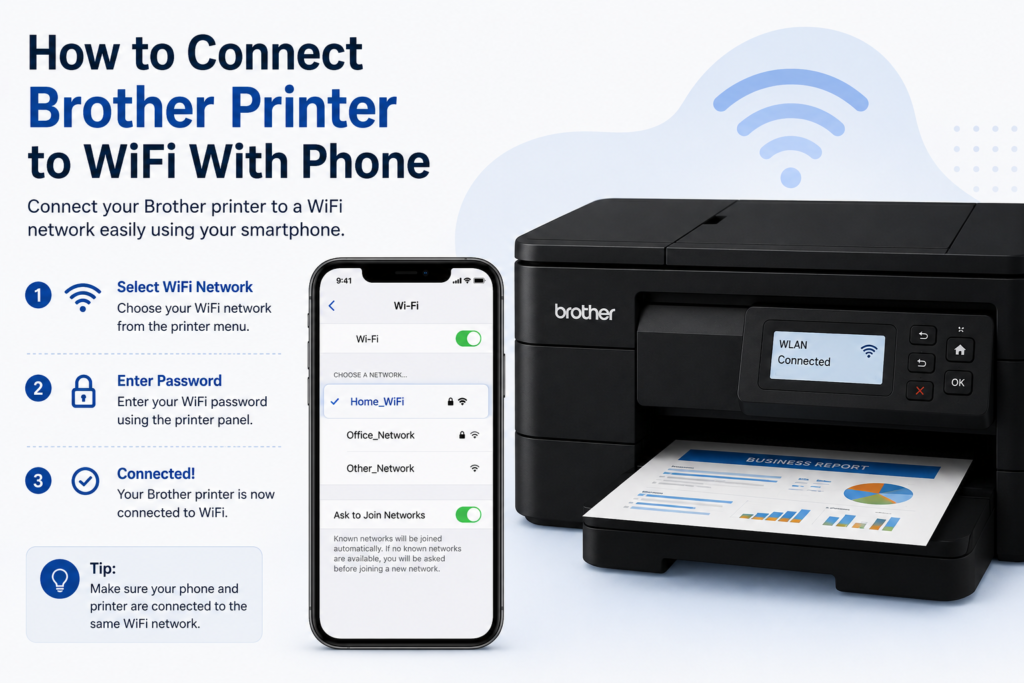
The exact process depends on your printer, but a typical setup looks like this:
- Turn on the Brother printer.
- Connect your phone to WiFi.
- Install the appropriate Brother mobile application for your model.
- Open the application and choose the option to add or set up a machine.
- Follow the on-screen setup instructions.
- Select your wireless network when requested.
- Enter the WiFi password.
- Wait for the printer to connect.
- Try printing from your phone.
Brother states that, for wireless network use with Brother Mobile Connect, the mobile device should connect to the same network as the Brother machine, or use Wi-Fi Direct where supported.
Not every Brother model supports exactly the same mobile features, so check compatibility for your particular printer.
9. Brother Printer WiFi Not Working on Windows 11
If your Brother printer WiFi is not working on Windows 11, don’t immediately reset the printer.
First check whether the printer itself is connected to WiFi.
If it is, open:
Settings → Bluetooth & devices → Printers & scanners
Find your Brother printer and check its status.
If the printer is missing, try adding it again.
If Windows can see it but printing doesn’t work, check for:
- Stuck print jobs
- Printer offline status
- Incorrect default printer
- Driver problems
- Network communication problems
Restarting the Windows Print Spooler can also help with certain printing problems.
If necessary, remove and reinstall the printer or update its driver.
The key point is this:
If the printer is already connected to the router, repeatedly resetting its WiFi probably isn’t the right first fix.
Focus on the Windows side of the connection instead.
10. Brother Printer WiFi Not Working on Windows 10
A Brother printer WiFi not working on Windows 10 can have many of the same causes.
Check whether the printer has a working wireless connection first.
Then open:
Settings → Devices → Printers & scanners
Find the Brother printer and check whether Windows recognizes it.
If it appears offline or unavailable:
- Check the print queue.
- Restart the printer.
- Restart the computer.
- Verify the network connection.
- Check the printer driver.
- Remove and add the printer again if necessary.
If the problem started after a Windows or driver update, checking for a compatible current driver can also help.
11. Reset the Brother Printer Network Settings
If your printer still cannot connect and you recently changed your router, WiFi name, or password, old network settings may be causing the problem.
Many Brother printers provide a Network Reset option.
Depending on the model, you may find something similar to:
Settings → Network → Network Reset
or
Menu → Network → Network Reset
A network reset clears the printer’s saved network configuration. You’ll need to connect the printer to WiFi again afterward.
Before doing this, make sure you know:
- Your WiFi network name
- Your WiFi password
- Your exact Brother printer model
Also remember that Network Reset and Factory Reset are not necessarily the same thing. Avoid erasing unrelated settings when you’re only trying to fix the network.
12. Check the Printer Driver and Software
If the printer is successfully connected to WiFi but your Windows computer still cannot print, check the software side.
Identify the exact Brother printer model and make sure the driver you’re using is compatible with your version of Windows.
Driver troubleshooting is especially worth considering when:
- The printer works from your phone but not your computer.
- You recently updated Windows.
- You recently changed computers.
- Windows stopped recognizing the printer.
- You removed and re-added the printer.
- The printer appears connected but won’t accept print jobs.
Use the manufacturer’s official support resources when downloading drivers or firmware.
Brother Printer WiFi Not Working: What About Reddit Solutions?
People searching “Brother printer WiFi not working Reddit” will find many community discussions about printers disconnecting, showing offline, rejecting passwords, or disappearing from computers.
These discussions can be useful for discovering what other users tried, but they should be treated as troubleshooting ideas rather than universal instructions.
A fix that worked for one person’s printer and router may not apply to your model.
Be particularly careful with suggestions that involve changing:
- Router security
- IP configuration
- Firewall settings
- Advanced wireless settings
- Firmware
- Network isolation settings
Before making an advanced network change based on a Reddit or forum post, verify that the procedure is appropriate for your exact Brother printer and router.
How Do You Know Whether the Problem Is the Printer or Computer?
Here’s a simple test that can save you time.
If the printer won’t connect to the router:
Focus on the WiFi network, password, signal, WLAN setup, and saved network settings.
If the printer is connected to the router but Windows can’t find it:
Focus on Windows printer settings, drivers, print queue, and network communication.
If the printer works from your phone but not your computer:
The printer’s WiFi connection is probably working, so investigate the computer.
If no device can find the printer:
Check the printer’s network connection first.
Troubleshooting this way is much faster than resetting everything at once.
Quick Brother Printer WiFi Troubleshooting Checklist
When your Brother printer WiFi is not working, try these steps in order:
- Check whether your WiFi works on another device.
- Restart the Brother printer.
- Restart the router.
- Check whether the printer is connected to WiFi.
- Verify the network name and password.
- Move the printer closer to the router temporarily.
- Run the WLAN/Wireless Setup Wizard again if needed.
- Check your phone’s WiFi connection if mobile printing isn’t working.
- Check Windows printer settings if the printer is already online.
- Update or reinstall the appropriate printer driver if necessary.
- Consider a Network Reset if the printer contains old WiFi settings.
- Check model-specific Brother documentation if the problem continues.
Frequently Asked Questions
Why is my Brother printer WiFi not working?
Common causes include incorrect network credentials, old WiFi settings, weak wireless signal, network changes, Windows configuration problems, or driver issues.
Start by checking whether the printer itself is connected to the router.
Why is my Brother printer not accepting the WiFi password?
Confirm that you’re using the correct network and current WiFi password. Enter the password carefully because WiFi passwords are case-sensitive.
If the router or WiFi password recently changed, the printer may need to be configured for the network again.
Why is my Brother printer stuck on Connecting WLAN?
Restart the printer and router, verify the network name and password, and move the printer closer to the router temporarily.
If it still can’t connect, check the wireless setup and network reset instructions for your exact Brother model.
How do I connect a Brother printer to WiFi without a cable?
Many wireless Brother printers provide a WLAN or Wireless Setup Wizard through the printer’s control panel. Other models may provide different wireless setup methods.
The exact procedure depends on the printer model.
How do I connect a Brother printer to WiFi with my phone?
For supported models, you can use Brother’s mobile application and follow its setup process. Your phone should be connected to the appropriate WiFi network, and the exact features available depend on the printer model.
Why is my Brother printer not connecting to my phone?
Check that the printer is connected to WiFi and that your phone is connected to a network that can communicate with it.
Guest networks and other network configurations can sometimes prevent devices from discovering each other.
Why does my Brother printer work on my phone but not Windows 11?
If you can successfully print from your phone, the printer probably has a working network connection.
Check Windows printer settings, the print queue, offline status, and printer driver before resetting the printer’s WiFi.
Should I reset my Brother printer if WiFi isn’t working?
Not immediately.
Restart the printer and router, verify your network and password, and check the signal first.
A Network Reset is more appropriate when the printer contains old or incorrect network settings or when you’re configuring it for a changed network.
This article provides general educational and troubleshooting information. Brother and related product names are trademarks of their respective owners. This website is independent and is not affiliated with, authorized by, sponsored by, or endorsed by Brother Industries or its subsidiaries.


