
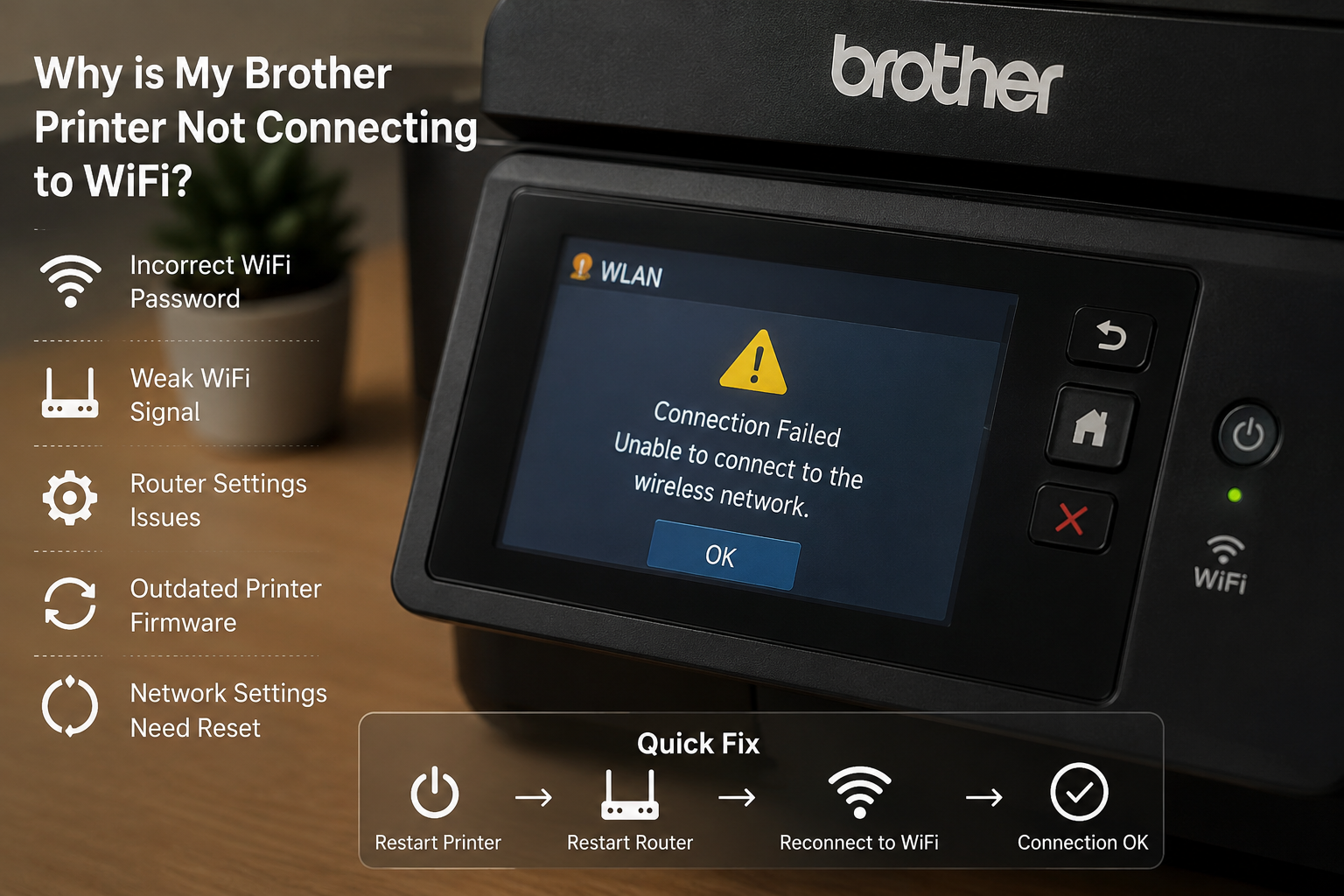
Why Is My Brother Printer Not Connecting to WiFi? Complete Troubleshooting Guide

If you’re asking, “Why is my Brother printer not connecting to WiFi?”, you’re not alone. Thousands of users experience wireless connectivity issues with Brother printers every year. Whether you’re using a Brother inkjet or laser printer, a failed WiFi connection can prevent printing, scanning, and other important tasks.
Table of Contents
ToggleIn this guide, we’ll explore the most common reasons why a Brother printer won’t connect to WiFi and provide step-by-step solutions to get your printer back online.
Common Reasons Your Brother Printer Is Not Connecting to WiFi
1. Incorrect WiFi Password
One of the most common causes of WiFi connection issues is entering the wrong wireless password. WiFi passwords are case-sensitive, meaning uppercase and lowercase letters matter.
Before troubleshooting further, double-check your WiFi password and reconnect the printer using the correct credentials.
2. Printer Connected to the Wrong Network
Many homes and offices have multiple WiFi networks available. Your Brother printer may be attempting to connect to the wrong network or an old network saved in its memory.
Verify that the printer is connected to the same WiFi network as your computer, smartphone, or tablet.
3. Router Uses 5GHz Instead of 2.4GHz
Many Brother printer models support only 2.4GHz wireless networks. If your router is broadcasting only a 5GHz signal, the printer may not detect or connect to it.
To fix this issue:
- Enable the 2.4GHz network on your router.
- Connect the printer to the 2.4GHz SSID.
- Restart the printer and router.
4. Weak WiFi Signal
Distance from the router can significantly affect wireless performance. Thick walls, metal objects, and electronic devices can interfere with the signal.
Move the printer closer to the router and try reconnecting. If the connection succeeds, signal strength may be the root cause.
5. Outdated Printer Firmware
Printer manufacturers regularly release firmware updates to improve compatibility and fix connectivity issues.
If your Brother printer has outdated firmware, it may struggle to connect to newer routers or wireless security protocols.
Visit Brother’s official support website and install the latest firmware available for your printer model.
How to Reconnect a Brother Printer to WiFi
Follow these simple steps:
- Turn on the printer.
- Press the Menu button.
- Navigate to Network Settings.
- Select WLAN.
- Choose Setup Wizard.
- Select your WiFi network name (SSID).
- Enter your WiFi password.
- Confirm the settings and wait for the connection message.
Once connected, print a network configuration report to verify the IP address and connection status.
Reset Brother Printer Network Settings
If your printer still won’t connect, resetting the network settings often resolves hidden configuration issues.
Steps:
- Open Menu.
- Select Network.
- Choose Network Reset.
- Confirm the reset.
- Restart the printer.
- Run the Wireless Setup Wizard again.
This removes old WiFi profiles and allows the printer to establish a fresh connection.
Router Settings That Can Block a Brother Printer
Sometimes the issue isn’t the printer—it’s the router.
Check for the following:
- MAC Address Filtering enabled
- Guest Network restrictions
- WPA3-only security mode
- Disabled DHCP server
- Hidden SSID settings
For maximum compatibility, use WPA2-Personal security and ensure DHCP is enabled.
Advanced Troubleshooting Tips
If basic troubleshooting fails:
Restart All Devices
Power off:
- Printer
- Router
- Computer
Wait 60 seconds and restart everything.
Update Printer Drivers
Outdated drivers can prevent devices from communicating properly with the printer.
Download the latest drivers from Brother Support and reinstall them on your computer.
Print a Network Configuration Report
Most Brother printers can print a report showing:
- Network status
- IP address
- Signal strength
- Connection errors
This information can help identify the exact cause of the problem.
Frequently Asked Questions
Why does my Brother printer find WiFi but not connect?
This usually indicates a password issue, security protocol mismatch, or unsupported network frequency.
Why did my Brother printer suddenly disconnect from WiFi?
Common causes include router updates, changed WiFi passwords, firmware issues, or signal interference.
Can I connect my Brother printer to 5GHz WiFi?
Many Brother models support only 2.4GHz WiFi. Check your printer’s specifications to confirm compatibility.
If your Brother printer is not connecting to WiFi, the problem is usually related to network settings, signal strength, router compatibility, or outdated firmware. Start with simple solutions such as restarting devices, verifying your WiFi password, and reconnecting through the Wireless Setup Wizard. In most cases, these steps resolve the issue quickly.
By following the troubleshooting methods outlined above, you can restore your Brother printer’s wireless connection and get back to printing without interruptions.


